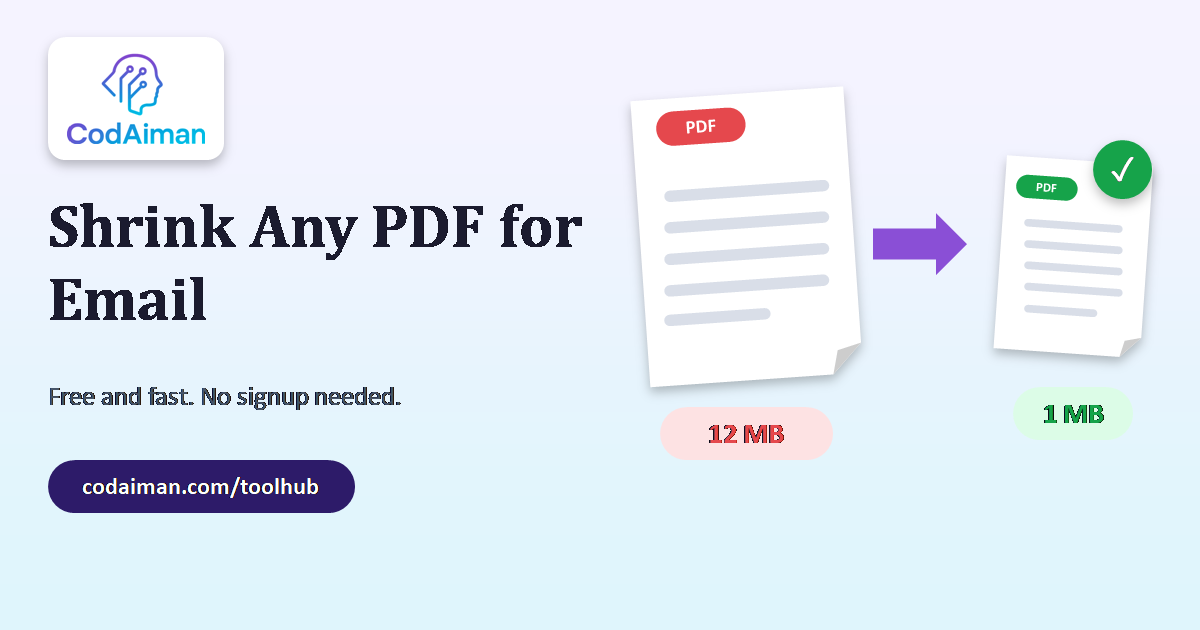
Large, uncompressed images are one of the most common reasons a website, email attachment or upload feels slow. The good news: you can shrink almost any image's file size dramatically without a visible quality loss — and you don't need Photoshop or any installed software to do it.
Why image compression matters
Every extra megabyte in an image is extra load time for whoever's viewing it — a slow-loading photo on a website hurts both user experience and search rankings, and a huge attachment can bounce off an email server's size limit entirely. Compression removes redundant data from the file without meaningfully changing how it looks.
Step 1: Pick the right tool
You don't need desktop software for this. ToolHub's free Image Compressor runs entirely in your browser — upload a file, and it returns a smaller version in seconds, with no signup and no watermark.
Step 2: Upload your image
Drag and drop your JPG, PNG or WebP file into the tool. Most compressors accept files up to a reasonable size limit for free, which covers the vast majority of photos and screenshots.
Step 3: Choose lossy vs lossless
Lossy compression (typical for JPG) reduces file size the most by discarding data the human eye barely notices — ideal for photos. Lossless compression keeps every pixel exactly the same but compresses less — better for logos, icons or screenshots with sharp edges and text, where PNG is usually the right format.
Step 4: Compare before and after
A good compressor shows you the size reduction — it's common to see 50-80% smaller files with no visible difference at normal viewing sizes. If you do notice quality loss, dial back the compression level, or convert to a modern format instead.
Step 5: Consider a modern format
If you have flexibility on format, WebP is typically 25-35% smaller than an equivalent-quality JPG or PNG, and is now supported in every major browser. ToolHub's Image Converter handles this conversion alongside compression.
Common mistakes to avoid
- Compressing an already heavily-compressed JPG repeatedly — this compounds quality loss ("generation loss"). Always compress from the original.
- Using PNG for photos — PNG's lossless nature means large photos stay large. Use JPG or WebP for photographic content instead.
- Ignoring dimensions — a 4000px-wide image compressed but never resized is still far larger than it needs to be for a 800px-wide website slot.
Want to check how your website's images (and other performance factors) stack up overall? Run a free speed test with siteIQ to see exactly what's slowing your pages down.